

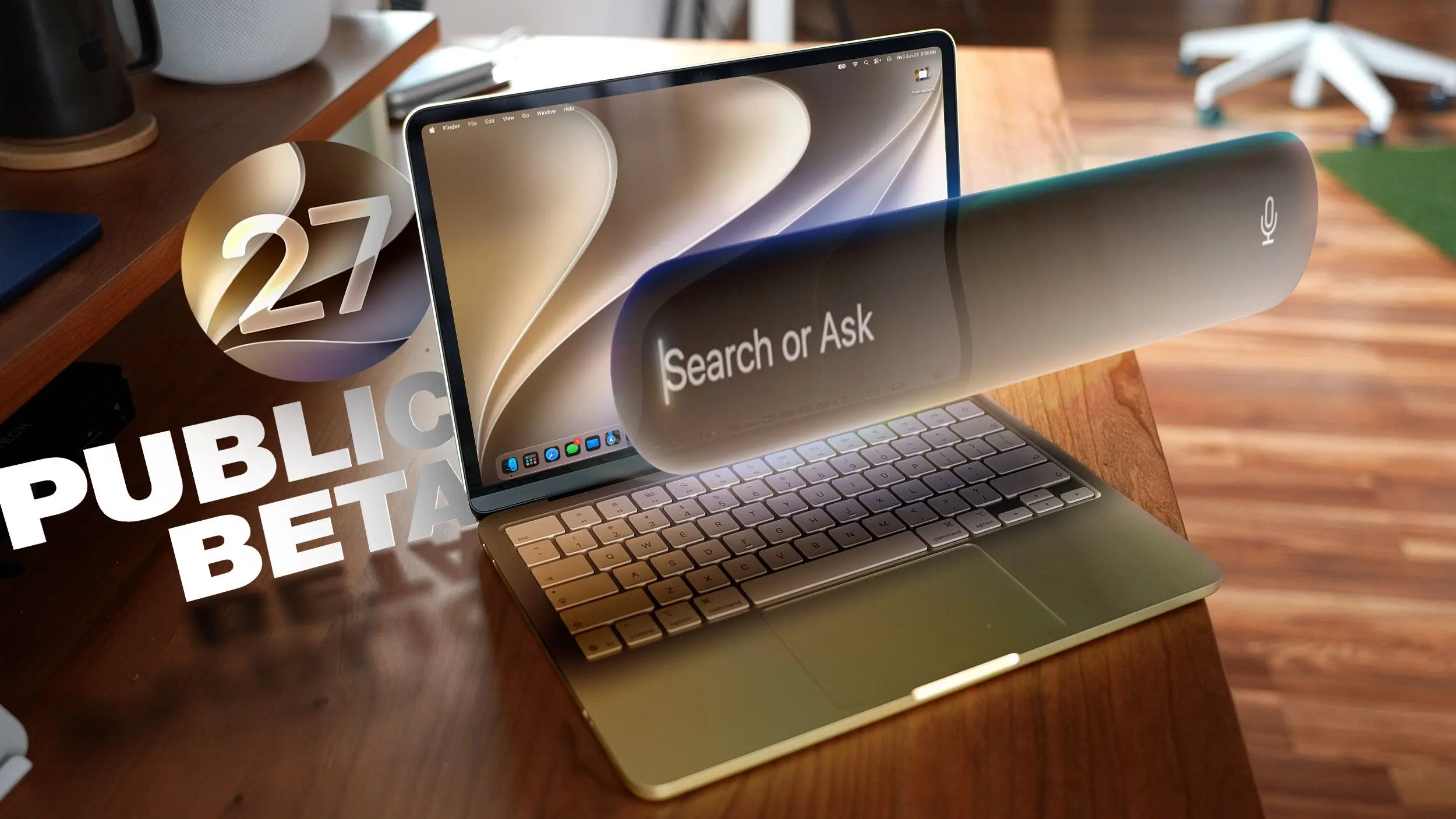
Apple has seeded the first public beta of macOS 27 Golden Gate, giving users early access to the next major operating system update. This version introduces a significant redesign, deeper integration of artificial intelligence, and numerous performance enhancements. Whether you are a developer or an enthusiast, here are ten features worth testing immediately.
Liquid Glass
The most visual change in macOS Golden Gate is the revamped Liquid Glass interface. Apple has added a new slider in System Settings that lets you adjust the transparency level of window backgrounds. You can choose a more translucent look that lets wallpaper and underlying content show through, or a more opaque style for better readability. The slider offers precise control, so you can find a perfect balance between aesthetics and legibility.
Beyond the slider, Apple has fine-tuned the overall opacity and diffusion properties of Liquid Glass. Complex content behind navigation bars and buttons now appears softer, reducing visual clutter. The system also introduces darkened edges and brighter specular highlights, which add depth and make it easier to distinguish different UI elements. These changes aim to create a more immersive and distraction-free desktop environment.
Toolbars, Sidebars, and Windows
macOS Golden Gate brings uniformity to app toolbars. Text headings and grouped controls are now more legible thanks to a reduction in the number of icons used in menu interfaces. Windows across all apps share a consistent corner radius, eliminating the dramatic curves seen in previous versions.
Window shadows have been adjusted to improve depth perception. Combined with the Liquid Glass updates, it is now much easier to identify the active window when multiple apps are open. Sidebars no longer float; they stretch edge-to-edge, which Apple says is a less distracting design. Additionally, sidebar icons have regained their color, helping users quickly identify tools and sections.
Siri AI
The headline feature of macOS Golden Gate is Siri AI, a complete overhaul of Apple's virtual assistant. Siri now functions as a full conversational chatbot, capable of understanding context, remembering past conversations, and performing complex tasks. On the Mac, you can invoke Siri using the familiar Spotlight shortcut (Command + Space), which has been merged into a unified “Search or Ask” bar. This bar lets you search for files, apps, and web content, or ask Siri to answer questions, compose emails, or control apps.
There is also a dedicated Siri app where you can view your conversation history, start new threads, and see suggestions. Siri conversations sync across all your Apple devices, and the app works on iPhone, iPad, and Mac. Siri AI can see what is on your screen and access personal data such as emails, messages, and photos (with your permission) to provide personalized answers. It can also search the web and perform actions inside apps, a massive leap from the previous version.
For example, you can ask Siri to “summarize yesterday’s emails about the project,” “set a reminder for the grocery list from my messages,” or “find photos of my dog from last year.” The assistant understands natural language and can follow up on previous queries. More details are available in Apple’s Siri AI guide.
Visual Intelligence
Visual Intelligence, previously exclusive to iPhone, comes to the Mac in macOS Golden Gate. This feature allows you to ask Siri questions about anything displayed on your screen. You can capture the entire screen or select a specific area using keyboard shortcuts.
Press Command + Shift + Space or Command + Shift + 6 to select a portion of the display. If you use the standard screenshot shortcut Command + Shift + 5, you will see a new Visual Intelligence icon that enables an adjustable selection square. Siri can then analyze the captured content: identify objects, translate text, summarize paragraphs, extract information, or answer questions. It can also add data from the screen to apps like Calendar, Reminders, or Notes.
Visual Intelligence on Mac includes all the features from the iPhone version, such as recognizing food items and providing nutritional information, splitting restaurant bills, or identifying landmarks and plants. This makes the Mac an even more powerful tool for research, productivity, and everyday tasks.
Write with Siri
Building on the Writing Tools introduced in macOS Tahoe, macOS Golden Gate adds “Write with Siri,” a system-wide feature that lets you compose and edit text using natural language. Right-click in any text field and select “Ask Siri” to get started. If you have selected text, Siri can proofread, rewrite, or adjust its tone. In a blank document, Siri can generate entire emails, messages, or social media posts based on your instructions.
One of the most impressive capabilities is that Siri learns your writing style by analyzing past communications. When drafting an email, it can mimic your usual phrasing and tone. Apple has also expanded spell correction to include grammar suggestions and fixes, making the Mac a more helpful writing assistant.
iPhone Mirroring
iPhone Mirroring, introduced in macOS Tahoe, receives a welcome upgrade in Golden Gate. You can now resize the mirroring window by dragging its corners, allowing you to make it larger or smaller. Some apps are limited to a portrait iPhone aspect ratio, but others support iPad or landscape layouts, giving you more flexibility when interacting with your iPhone on the Mac.
Shortcuts
The Shortcuts app has been redesigned to make automation accessible to everyone. When you open Shortcuts in macOS Golden Gate, you are greeted with a simple interface that asks you to describe what you want the shortcut to do using natural language. For example, you can type “Create a shortcut that sends my current location to my wife every morning” or “Remind me to water the plants every Tuesday at 9 AM.”
AI then generates the shortcut automatically. You can refine it with further natural language commands or dive into the visual editor to tweak the actions manually. Shortcuts can be activated from the app, via Siri, or with a keyboard shortcut, making automation more powerful and easier to use.
Safari Extensions
Safari in macOS Golden Gate introduces customizable extensions created on the fly using AI. Click the settings icon in the URL bar and select “Describe Extension.” You can type any functionality you need, such as “Display a reading time estimate as a badge on the extension,” “Close duplicate tabs pointing to the same URL when I click the extension,” or “Highlight this word.” Safari will generate a working extension instantly.
Other examples include creating a three-minute focus timer for a page, setting the minimum font size to 14pt, drawing a flower every time you open a new tab, or entering a design mode to edit webpage contents. This feature dramatically extends Safari’s capabilities without requiring any coding knowledge.
Safari Tab Grouping and Notifications
Safari also gains intelligent tab grouping. The browser automatically groups related tabs together in the tab view, helping you stay organized. For example, if you have multiple tabs open for research on a single topic, they will be clustered into a group.
Additionally, you can set Safari to monitor a webpage for changes. Choose between Hourly, Daily, Weekly, or Monthly checks. When the content of the page updates, you receive a notification. This is perfect for tracking price drops, news updates, or any frequently changing website.
Performance Improvements
Under the hood, macOS Golden Gate includes numerous performance optimizations. Animations and interactions are faster and smoother, especially when scrolling in Safari and other apps, opening Mission Control, or switching Spaces. AirDrop transfers complete more quickly, and browsing files on network-attached devices is snappier. Window positioning is more stable when using external displays.
Messages sync faster and more reliably across devices. Apple has rebuilt the search foundation for Spotlight, Photos, Mail, and Messages, resulting in quicker indexing. Recent searches now appear almost instantly, and Mail features a ranking system that surfaces the emails you are most likely looking for. Mail search indexing is more reliable, and Spotlight suggestions are more relevant.
How to Install
To try macOS Golden Gate public beta, sign up on Apple’s beta testing website. Then open System Settings, go to General > Software Update, and under Beta Updates, select “macOS 27 Golden Gate Public Beta.” After that, install the update like any other software update. Remember to back up your Mac with Time Machine before installing, as betas can contain bugs.
System Requirements
macOS Golden Gate supports Macs with an M1 chip or later, including the A18 Pro MacBook Neo. Intel-based Macs are not supported and will not receive the new features. Every compatible Mac supports Apple Intelligence and Siri AI, but some on-device Siri processing features—such as selecting a natural voice and upgraded dictation—require an M3 chip or newer.
Siri AI is not available in the European Union or China at launch, and this restriction will persist when the final version ships in the fall.
Source: MacRumors News